
Viewport overlays
Configure corner information, crosshairs and scale bars.
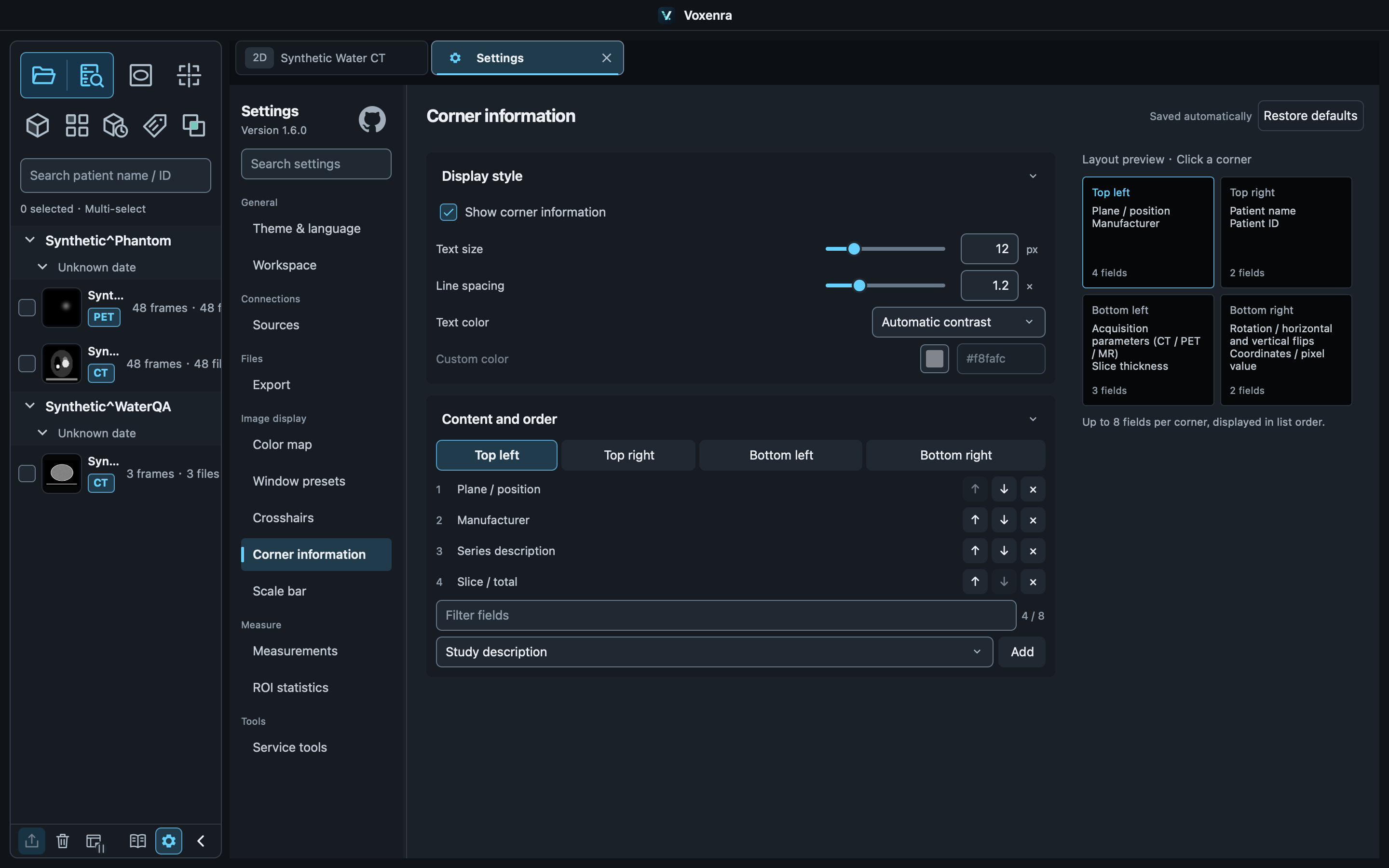
Select and order
In Settings → Corner information, click a corner preview. Add, remove, search and reorder up to 8 fields per corner. Bottom right includes Rot / Flip by default: angle and horizontal / vertical flips. Corner field labels always use English, independent of the interface language. Patient names and series descriptions retain their original content.
Text and display
Toggle visibility, font size, spacing and color. Small viewports reduce text size and ellipsize each line to prevent overlap. Fusion supports compact or detailed information in viewport settings.
View differences
Tiles shows slice numbers only; 3D shows no corner text. Missing metadata is not invented. These preferences affect display only.
Crosshair style
In Settings → Crosshairs, set AX/COR/SAG colors and widths. AX color appears in COR and SAG, for example. Slab boundaries follow the plane color. Styling does not move or rotate planes.
PET fusion locator
In fusion Viewport settings, choose Small cross / Reference lines for all four cells. Locator hits take priority for positioning. Switch to the corresponding region tool before editing regions.
Scale bar size and fitting
In Settings → Scale bar, choose a maximum of 1, 10, 20, 50 or 100 mm, default 100 mm. Toggle visibility or change its color. Zoom and window size select a suitable 1, 2, 5 × 10ⁿ mm length, limited by your setting, 25% of viewport width and 160 px. The scale hides without reliable spacing or enough space.