Add a language pack
Add a JSON file to the local language folder, then restart and select it. The manual follows the interface language.
1. Open the language folder
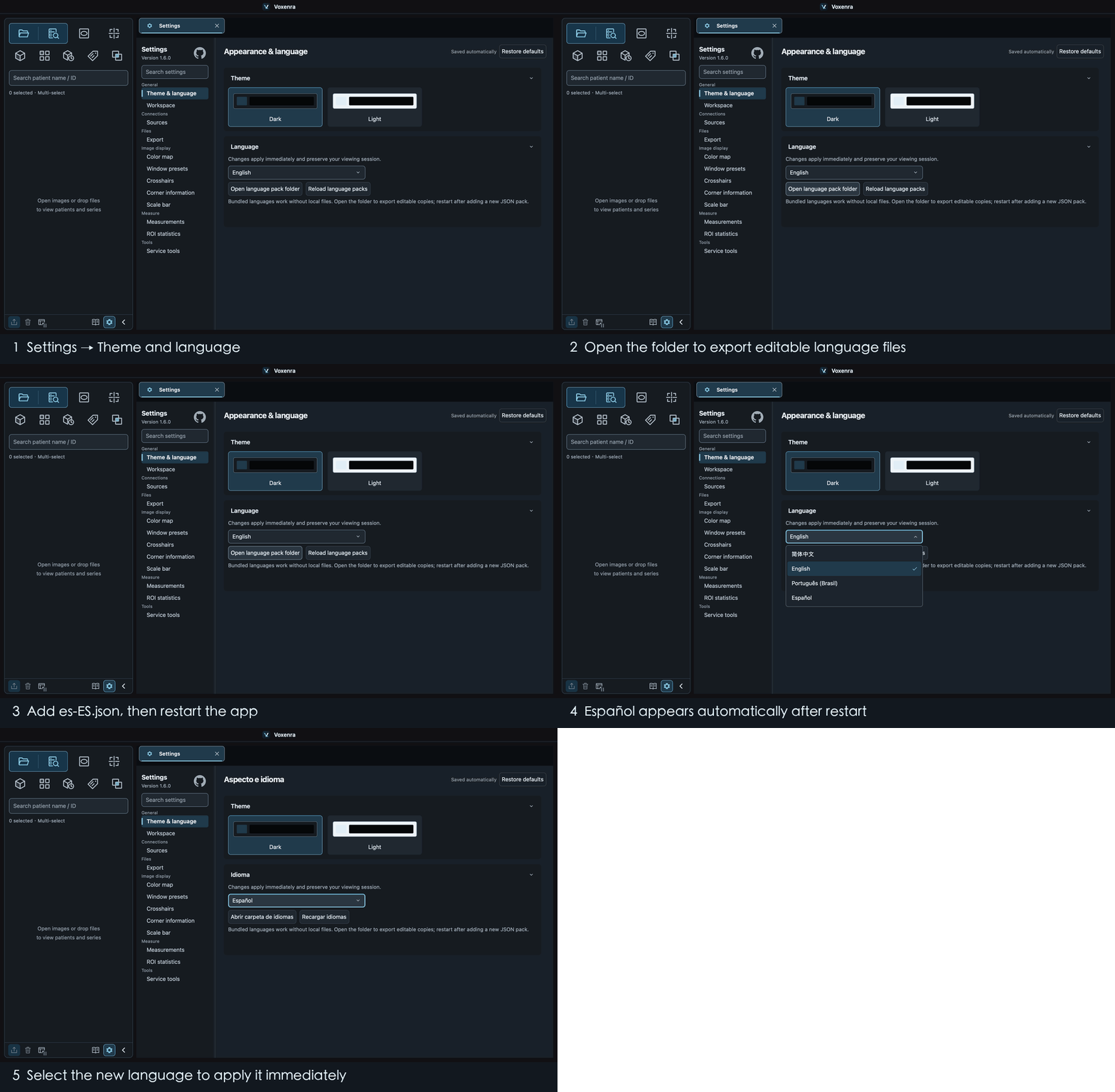
Go to Settings → Theme and language and click Open language pack folder. Missing editable copies of the bundled languages are exported. Existing files are preserved.
2. Prepare a new language file
For Spanish, copy en-US.json and name the copy es-ES.json. In the copy, change locale to es-ES and name to Español. The filename must match locale; keep formatVersion set to 1.
3. Translate the text
Use a text editor and save the JSON as UTF-8. Translate the text inside messages, keeping message IDs, placeholder names and formats intact. You can translate a few entries first; missing translations use English. Manual text is included in the pack. Preserve **emphasis** and backticks around shortcuts.
4. Restart and select
Save the file, restart the app, and select Español under Settings → Theme and language. The change applies immediately and is remembered on the next launch. After editing an existing pack, you can also click Reload language packs.
Switch the manual between Chinese and English
Select Simplified Chinese or English under Settings → Theme and language. The manual navigation, text, search results, screenshots and this tutorial animation switch together without restarting.
Bundled languages and errors
Chinese, English and Brazilian Portuguese (pt-BR) are bundled and can be selected without local copies. Edited local packs take priority; missing entries use the bundled language, or English for a new language. Invalid JSON or placeholders are reported in Settings and preserve the current valid text. Correct the file and reload, or remove the local copy to restore the bundled content.