
3D volume rendering and presets
Rotate volumes to explore spatial relationships; presets control their appearance.
Viewpoint
Left-drag rotates by default; selecting Window, Pan, Zoom or Crop assigns that operation to the left button. Right-drag zooms. The wheel also zooms because volume rendering has no slice pages. Choose A/P/L/R/S/I for standard directions. The orientation cube indicates the view direction; 3D has no corner text.
CT presets and table removal
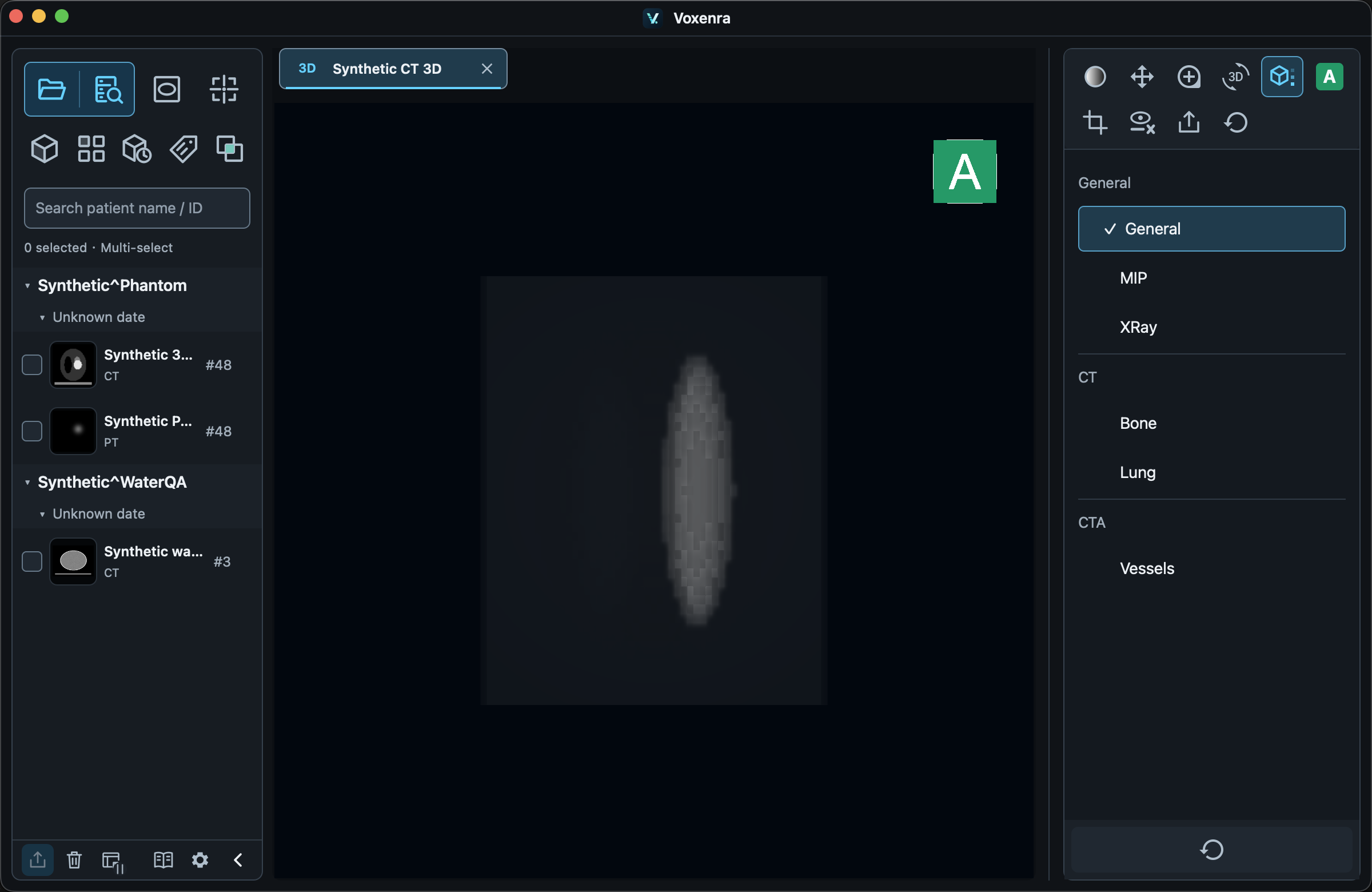
CT starts with AAA and offers 20 presets, including General, MIP, XRay, bone, lung, vessel, cardiac, muscle and hardware. For 3D windowing, drag vertically to shift the tissue range and horizontally to change its width; color and opacity change together. Reset restores the current preset. Presets change presentation and do not segment organs. Toggle Bed removal independently; disable it and crop if it removes anatomy. Grayscale inversion is unavailable in 3D.
Crop
Choose Crop, outline a region with the left button and release. Inside removes the enclosed region; outside keeps it. The region extends through the volume along your view. Reset crop restores the image; Reset all also disables table removal.
Standalone PET 3D
Open a PET series directly in 3D. Choose an available unit, display maximum, low threshold, color map and opacity. Defaults are 10% threshold and 80% opacity. Switching units preserves viewpoint and cropping.
Save the image
Cropping affects only the current tab and leaves sources unchanged. Export PNG saves the current 3D image. 3D DICOM export is unavailable.
MR volume rendering
MR provides grayscale, high-signal and MIP presets using the current volume’s intensity range. Auto/manual windows support three decimals. Rotation, zoom, directions, cropping and PNG export use the existing 3D tools. CT tissue presets and table removal are hidden. Volume rendering is not a segmented tissue model. MR MIP auto-window uses the full finite intensity range to reduce clipping in maximum projections.
Loading and switching tabs
Large volumes initially show a loading message. You can switch tabs or close the view while it loads; closing stops unfinished reading. Creating the first 3D frame can still cause a brief pause. Once the image appears, you can interact with it or export it.