
Workspaces and tabs
Organize tabs and windows; save and restore your workspace.
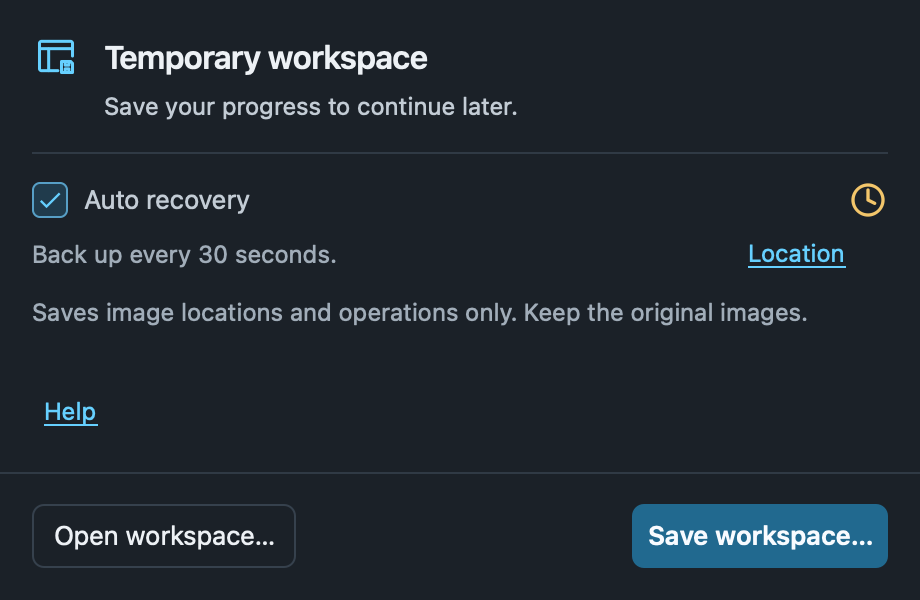
Open and save
Importing images starts a temporary workspace automatically. Choose Workspace → Save workspace… at the bottom left. After naming it, use Save changes or Save as…. Open workspace… restores tabs, display settings and completed measurements, annotations, VOIs and crops. Saving a workspace includes the tabs and completed edits from all windows. Reopening restores every tab to the main window. Window positions and groups are not saved.
Auto recovery
Enabled by default, it backs up changes every 30 seconds. Disabling it persists after restarting and does not affect manual saving. A green check means the backup is current. Hover over the status icon for its time or status. Hover over or click Backup location to view the full path. Choose Copy path, or Open location to dismiss the card and open the containing folder. Clicking Recover or Discard closes the workspace window. It reopens if recovery fails or source files need locating.
Exit confirmation
When closing a saved workspace, choose Update, Don’t update, or Cancel. A temporary workspace asks whether to save. Updating or saving exits only after a successful write; declining exits immediately, and Cancel returns to the app. Remember my choice skips future prompts; restore prompting in Settings → Workspace → Exit confirmation. Cancel never saves a preference.
Images have moved
Use Locate… to select the original file, folder or archive, or restore available series only. Cancel restore stops restoration.
Keep original images
Workspace files contain no image pixels. Keep local PACS downloads too. Recovery backups protect against unexpected exits and do not replace manual saving. Drafts and undo history are not saved.
Arrange tabs
Right-click a tab to close it, other tabs, tabs to its right or all tabs in that window. Drag with the left button to reorder; hold near either edge to scroll. Middle-click closes the target tab.
Compare views
Drop a tab outside the application windows, or choose Open in separate window. The new window keeps its tabs and tools; measurements, crops and undo history move with the tab. Drop onto another tab bar to merge. Press Esc to cancel a drag.
Close or return
Closing a separate window closes its tabs; other windows keep running. Use Show main window at the top right for series management, or Move to main window in the tab menu. Closing the last window uses the workspace exit confirmation.