
ROI metrics and measurement style
Read ROI dimensions and statistics, and adjust measurement appearance.
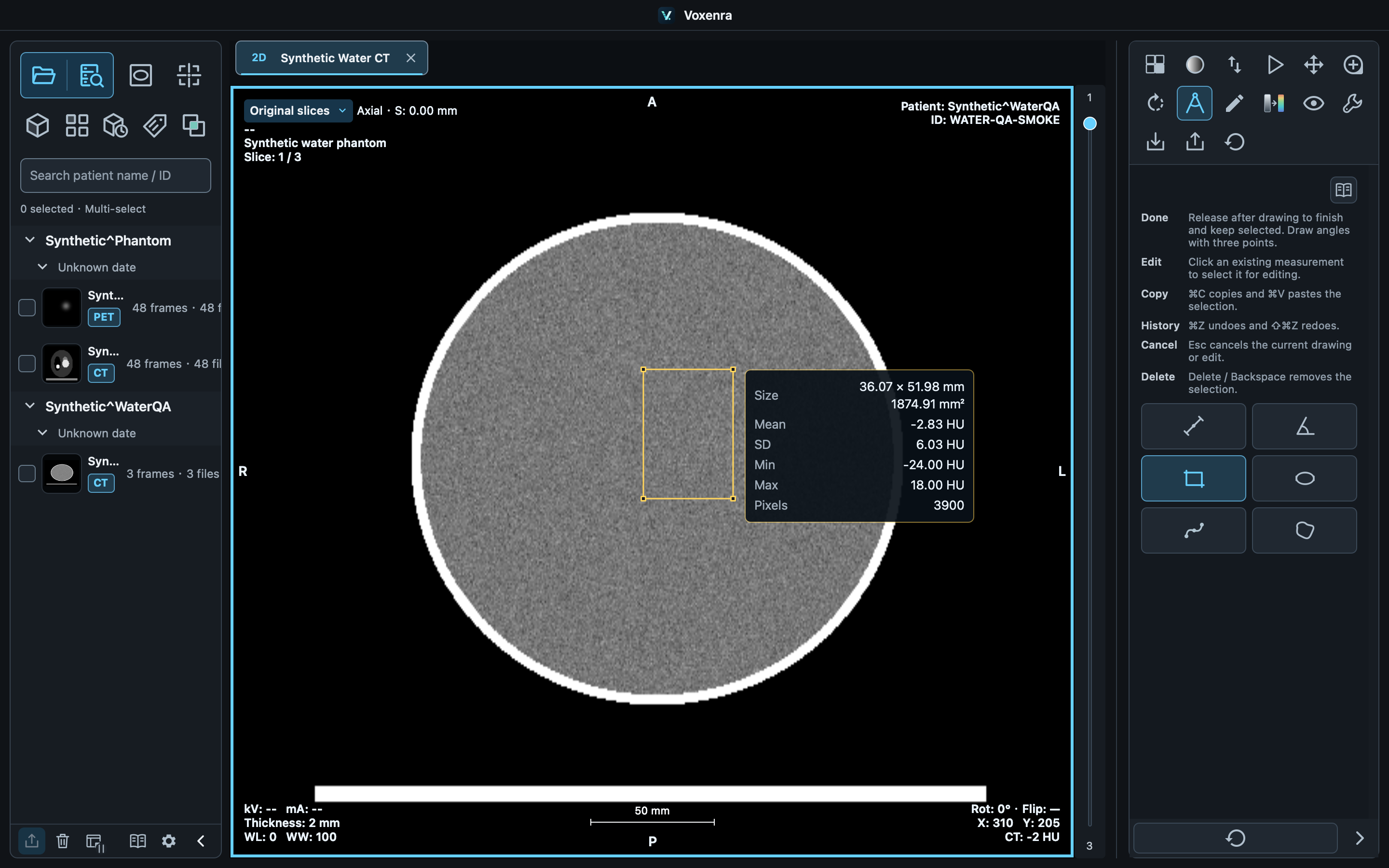
Dimensions and area
Dimensions use mm and area uses mm². Ellipse dimensions are diameters. Area describes the whole geometric outline; it is not valid pixel count multiplied by pixel area.
Read statistics
Mean is the average, SD the population standard deviation, Min / Max the extremes and N valid pixel count. Values use modality pixels, resampled for MPR, rather than screen brightness.
Valid samples
Only valid pixels whose centers lie inside the outline are sampled; out-of-image and non-finite values are excluded. No valid sample displays —, not zero. CT uses HU; PET uses an available data unit.
Choose statistics
Toggle fields in Settings → ROI statistics. Width and height share a toggle and a row with area. Hiding fields does not change calculations.
Colors and line styles
In Settings → Measurements and annotations, choose drawing / editing and completed colors, solid / dashed lines, width and font size. Changes apply immediately. Image zoom does not enlarge text or line widths. Measurement precision defaults to 2 decimal places, with integer, 1, 2 or 3 decimals available. Length, angle, ROI dimensions/area/intensity, VOI volume/statistics, MTF and water QA results update together. Pixel/voxel counts stay integers; calculations and workspace data remain unrounded.
Save and restore
Styles save locally. Restore defaults resets only the current settings category. Save measurement objects separately in a workspace; saving a style does not save results.